KalshiAPI key
How to create a read-only Kalshi API key.
As of October 8, 2026, you create a Kalshi API key on the Account & security page: API keys, then Create key. The dialog selects Ed25519 and ticks both Read all data and Full access. A read-only key keeps Read all data and unticks Full access, which also clears Trade and Transfers. The private key downloads once.
By Owen Monagan, Founder & CEOUpdated From Kalshi’s Create API key dialog and its API docs
Kalshi API keys at a glance
Checked October 9, 2026Steps
How to get a Kalshi API key, step by step.
Three clicks to the dialog, one box to untick. Labels below are the ones on Kalshi’s screen.
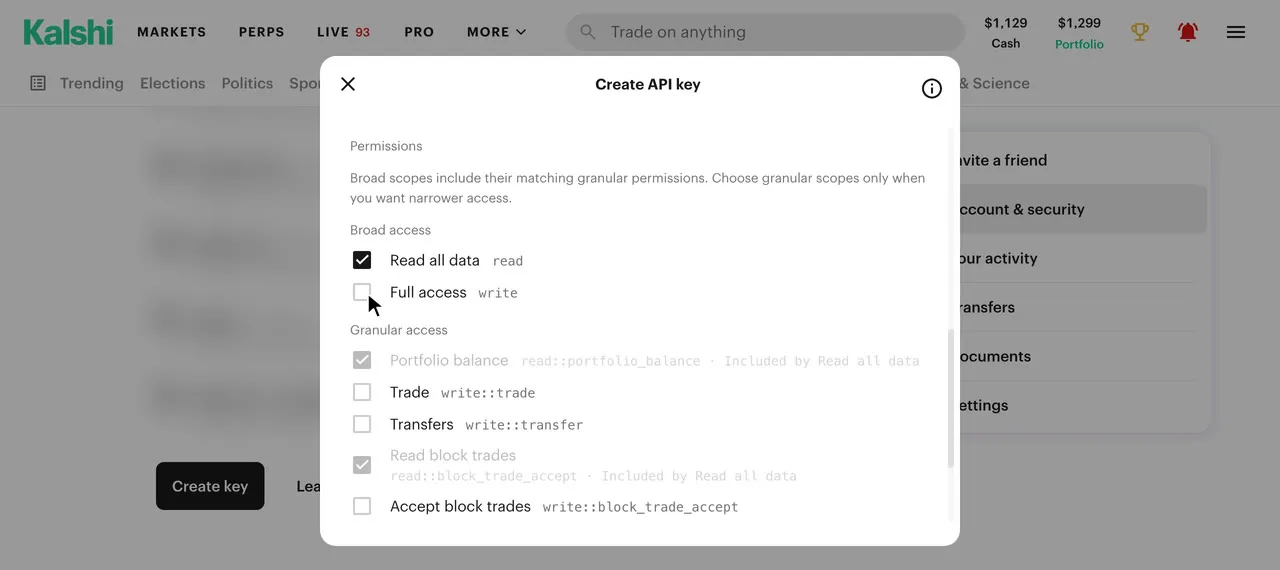
- On kalshi.com, open the account menu at the top right and choose Account & security.
- Scroll to API keys and press Create key.
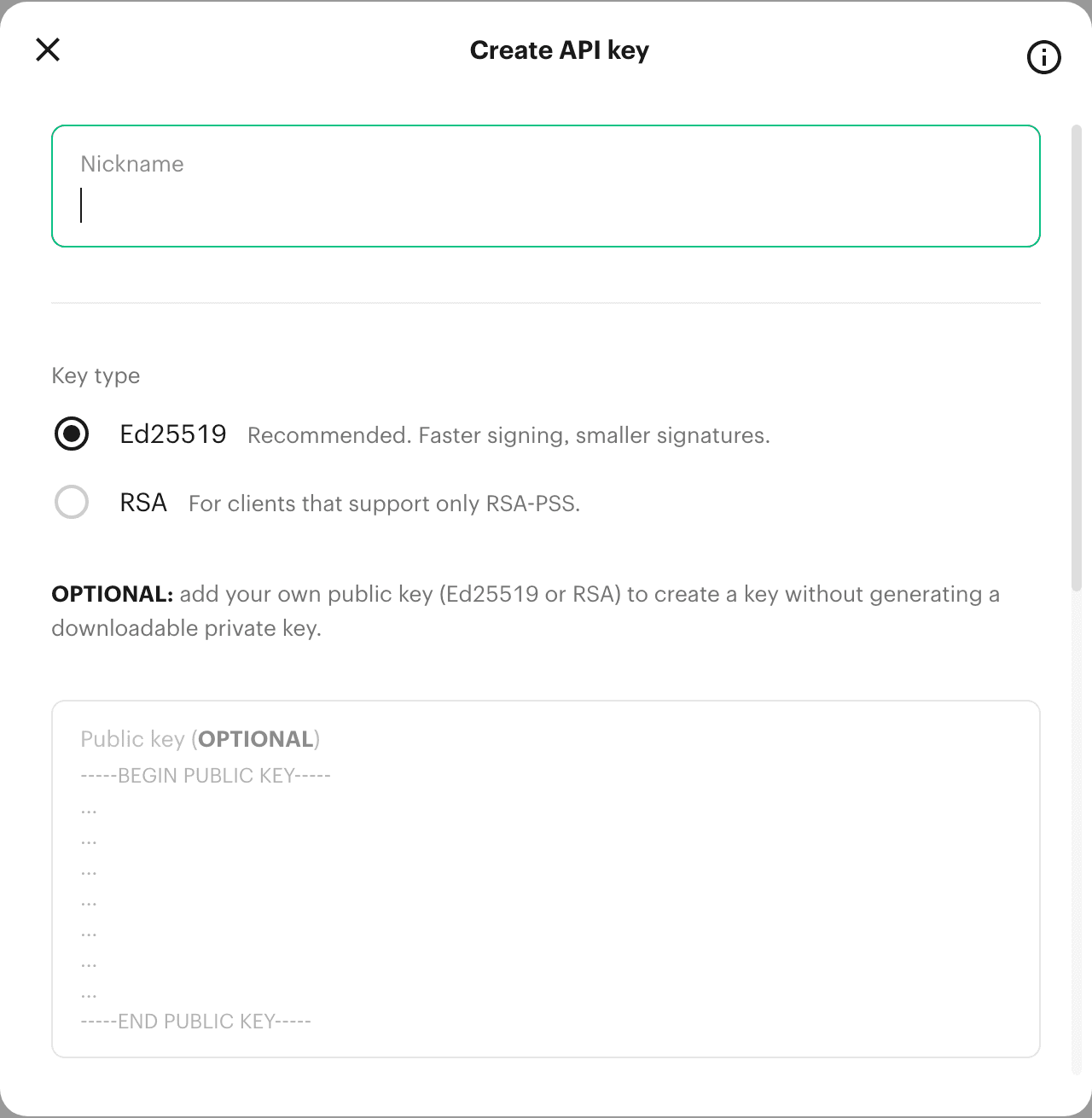
- Type a Nickname you will recognize. Leave Key type on Ed25519 or pick RSA, and leave Public key (OPTIONAL) empty.
- Under Permissions, keep Read all data ticked and untick Full access. Trade and Transfers clear with it.
- Press Create and keep the private key file it downloads, with the key ID.
Kalshi’s API Keys documentation names the same route differently: Account Settings, Profile Settings and a Create New API Key button. Above the button, Kalshi’s page adds one line about location: “API trading defaults to the most restricted access until you verify your location.”
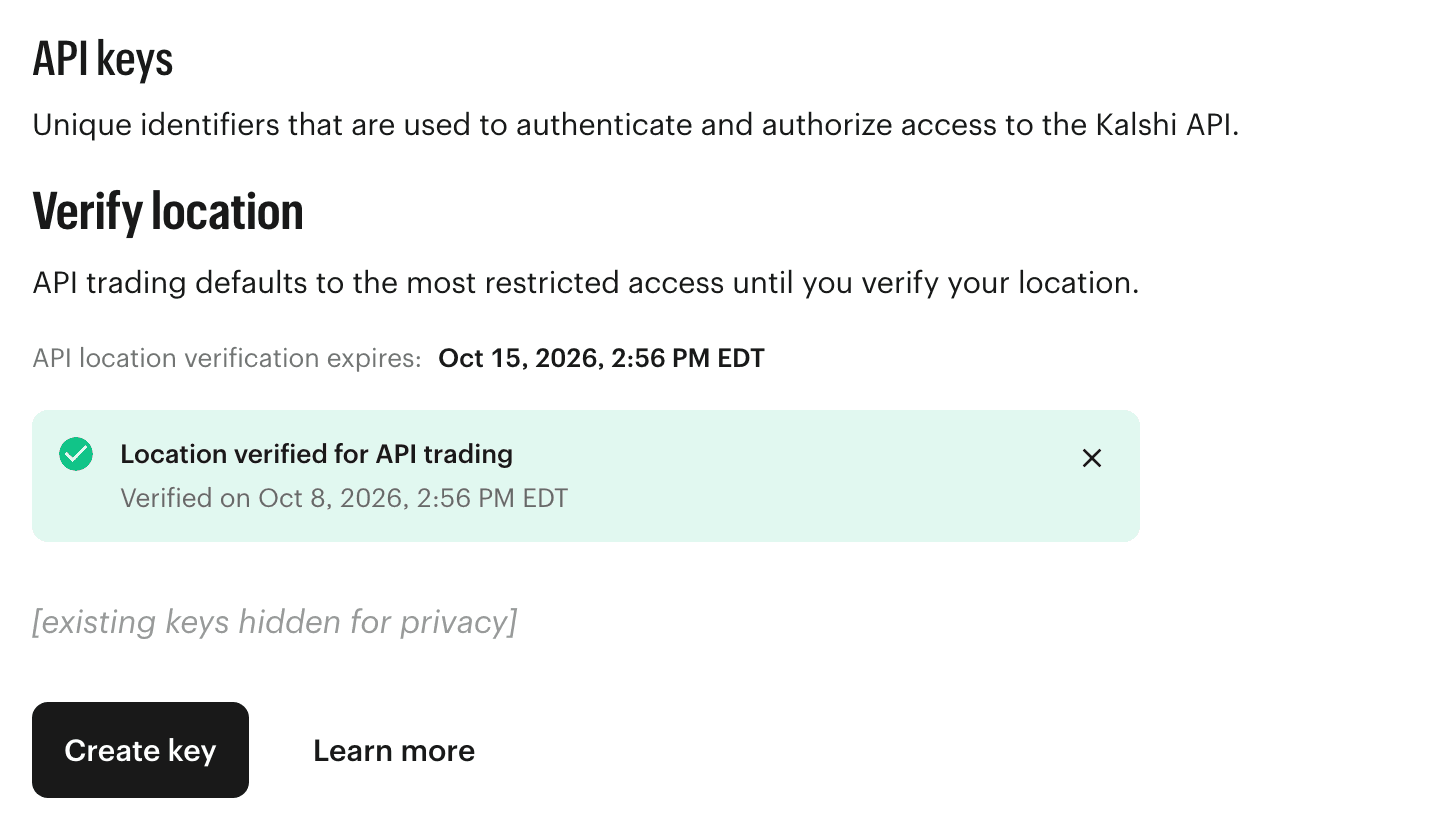
- Location check
- API trading defaults to the most restricted access until you verify your location Source
Key type
Ed25519 or RSA: the Kalshi key type.
The choice matters only to the tool the key goes into.
The dialog lists Ed25519, “Recommended. Faster signing, smaller signatures,” selected by default, and RSA, “For clients that support only RSA-PSS.” Kalshi’s documentation keeps RSA for clients limited to RSA-PSS, including SDK versions before 3.31.0. Realize connects with either.
The optional public key box is for people who already hold a key pair. Kalshi’s dialog says a key made that way comes “without generating a downloadable private key,” so there is no file to paste into a tool that asks for one. Leaving the box empty is what makes Kalshi generate the pair.
Permissions
Which permissions a read-only Kalshi key needs.
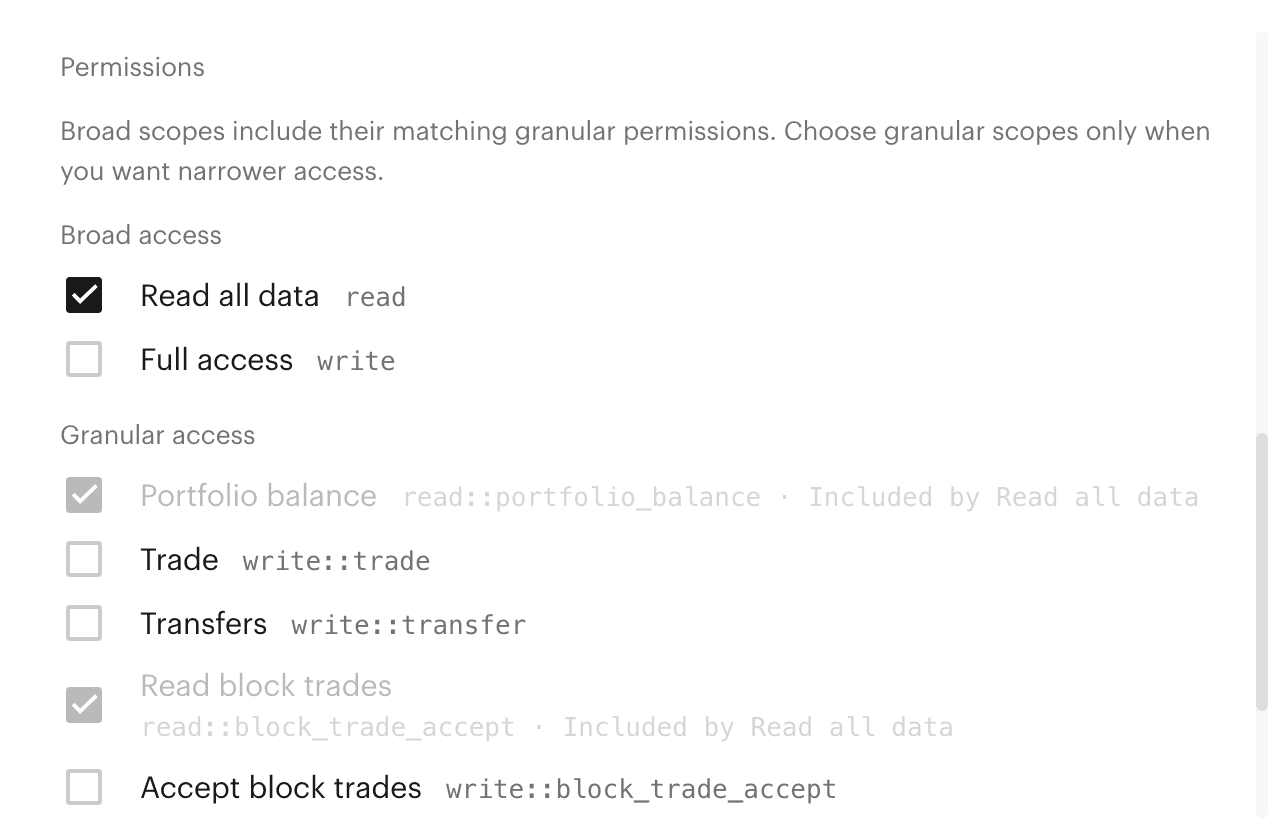
Read all data ticked, Full access unticked. The dialog opens with both ticked, and Kalshi’s docs do not describe either.
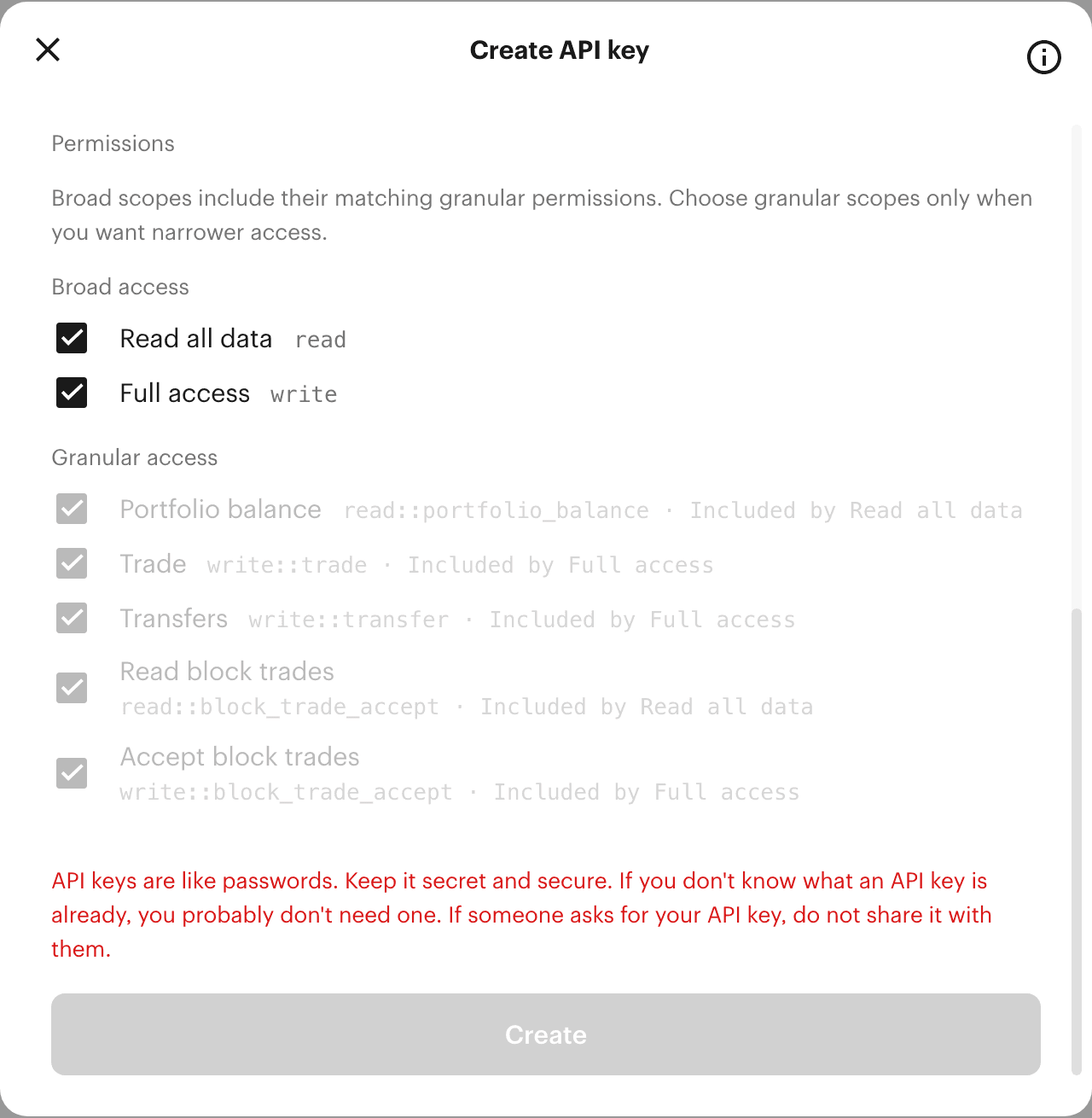
As it opens
Full access unticked
The dialog says “Broad scopes include their matching granular permissions.” Unticking Full access clears the three permissions it includes and leaves the two that Read all data includes:
| Permission | As it opens | Full access unticked |
|---|---|---|
Read all data read | Ticked | Ticked |
Full access write | Ticked | Unticked |
Portfolio balance read::portfolio_balance | Included | Included |
Trade write::trade | Included | Unticked |
Transfers write::transfer | Included | Unticked |
Read block trades read::block_trade_accept | Included | Included |
Accept block trades write::block_trade_accept | Included | Unticked |
The permission model lives only in the app: Kalshi’s API Keys documentation names no scopes, no expiry and no key limit. Left untouched, the dialog makes a key that can trade and move money.
Saving the key
Saving the Kalshi private key.
The download is the only copy.
Pressing Create downloads the private key. Kalshi’s API Keys documentation says it “will not be stored by our service, and you will not be able to retrieve it again once this page is closed.” A lost file means a new key. The same page says a new key comes as two things, a Key ID and a Private Key, and a tool that connects asks for both: the ID, and the file opened in a text editor.
Kalshi’s dialog carries its own warning: “API keys are like passwords. Keep it secret and secure. If you don’t know what an API key is already, you probably don’t need one. If someone asks for your API key, do not share it with them.”
What it reads
What a read-only key lets Realize read.
Read all data covers everything a tax year is rebuilt from:
- Every fill, from both the live and the historical endpoints.
- Every settlement, and the result of markets that have aged out of the API.
- The daily close of each market held on December 31.
Realize’s Kalshi client implements no trading endpoint, so even a Full access key could not place an order through it. Signing, paging and rate limits are on Kalshi trade history; how a year is filed from these records is in How to file Kalshi taxes. Who runs Kalshi, who regulates it and what it sends at tax time are on everything we track on Kalshi.
Questions
Questions people ask.
- Can I download my Kalshi private key again?
- No. Kalshi’s API Keys documentation says the private key is not stored by Kalshi and cannot be retrieved once the page is closed. If the file is lost, the way back is a new key.
- Does Realize work with Ed25519 Kalshi keys?
- Yes. Realize connects with either key type Kalshi offers: Ed25519, which the dialog selects by default, or RSA.
- Can a read-only Kalshi key place trades?
- No. A key made with Full access unticked has neither the Trade nor the Transfers permission, the two the dialog lists for placing orders and moving money. Realize’s own code also implements no trading route.
- Which permissions does a read-only Kalshi API key need?
- Read all data ticked and Full access unticked. Read all data includes Portfolio balance and Read block trades; unticking Full access also clears Trade, Transfers and Accept block trades. Kalshi’s Create API key dialog opens with both broad boxes ticked.
- Where are API keys in the Kalshi app?
- On the Account & security page, opened from the account menu at the top right of kalshi.com, in the API keys section, under the Create key button. Kalshi’s documentation calls the same place Profile Settings and the button Create New API Key.
Sources2 documents
Where each fact comes from.
Every figure above links to one of these, read on the date shown.
Also on Realize
The rest of the Kalshi record.
What the key reads, what Kalshi reports, and how a year is filed.
Price your Kalshi year three common ways.
Connect Kalshi read-only for a free estimate under each treatment.